
PRODUCT
Introducing Library: one home for your legal team’s documents
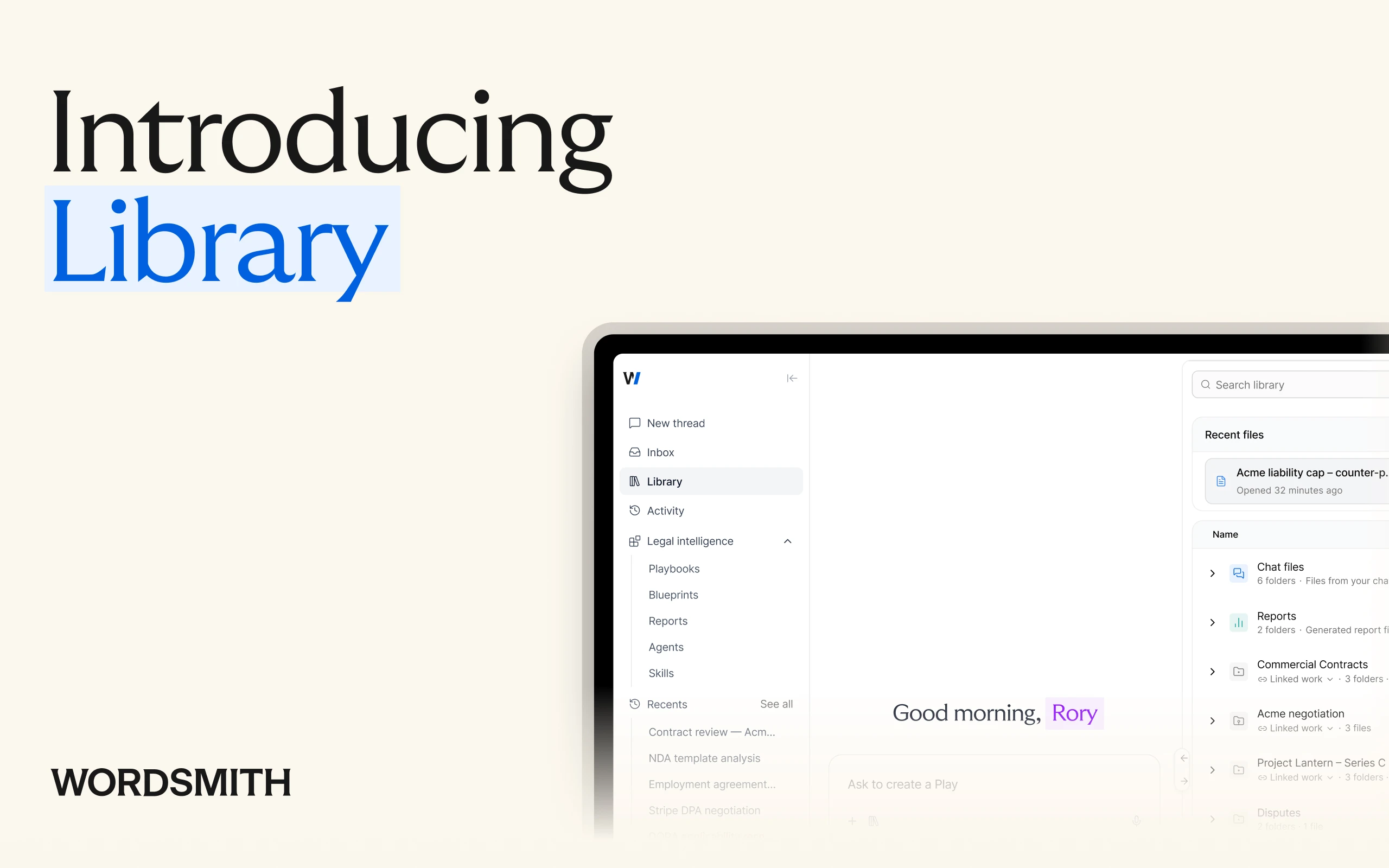
Find any document, pick up where you left off and work from the latest version. Library brings your repositories, recent files and chat drafts together.
BOOK A DEMO
See how the world's leading legal teams are building the future of in-house legal.
PRODUCT
Find any document, pick up where you left off and work from the latest version. Library brings your repositories, recent files and chat drafts together.
Lawyers live in Word. Wordsmith works there too. Review, redline, draft, research, and translate without ever leaving the document in front of you.
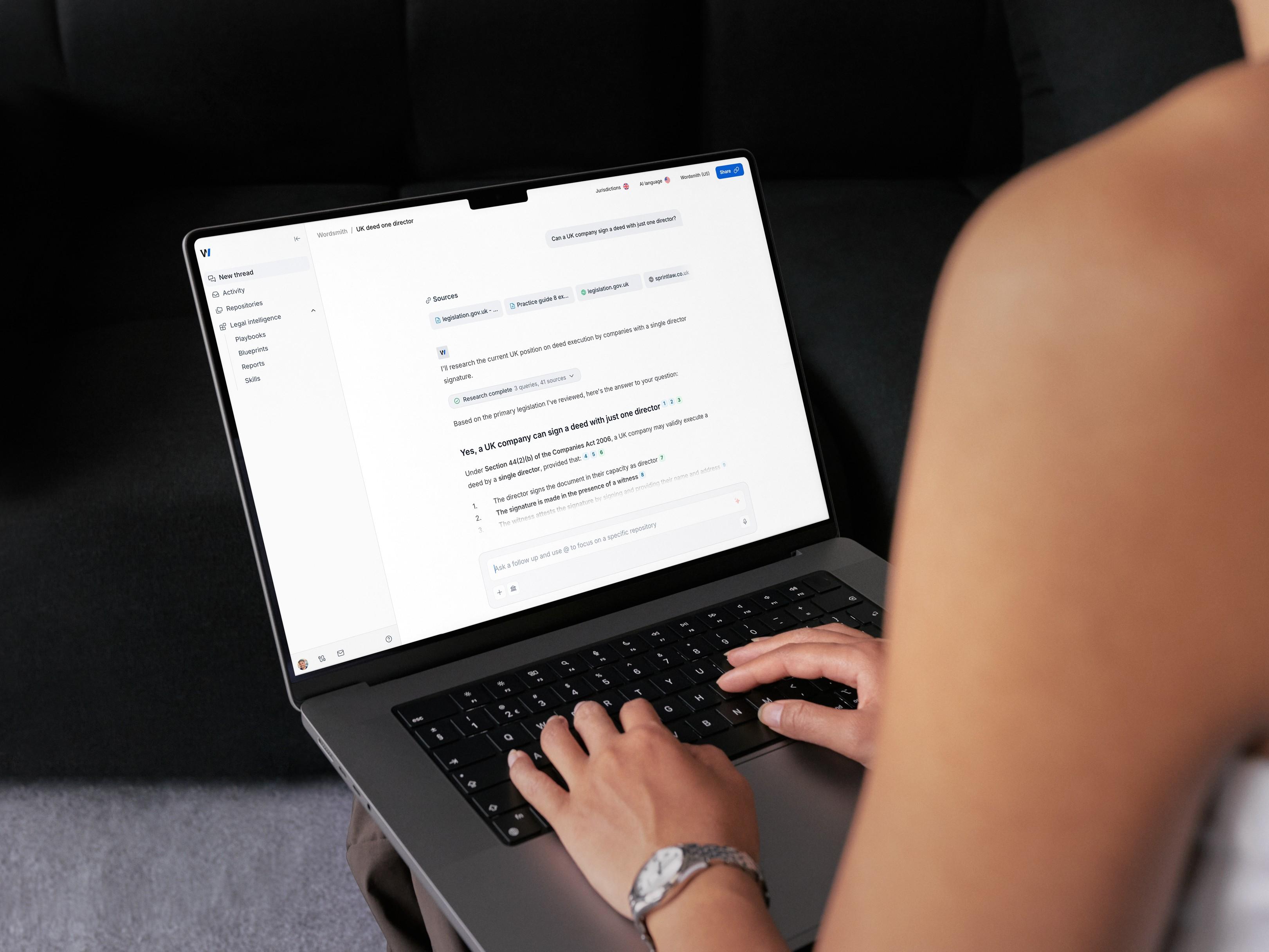
Global legal intelligence built around your business, hundreds of trusted sources across 130+ jurisdictions, combined with deep knowledge of your entities, risk profile, and prior positions.
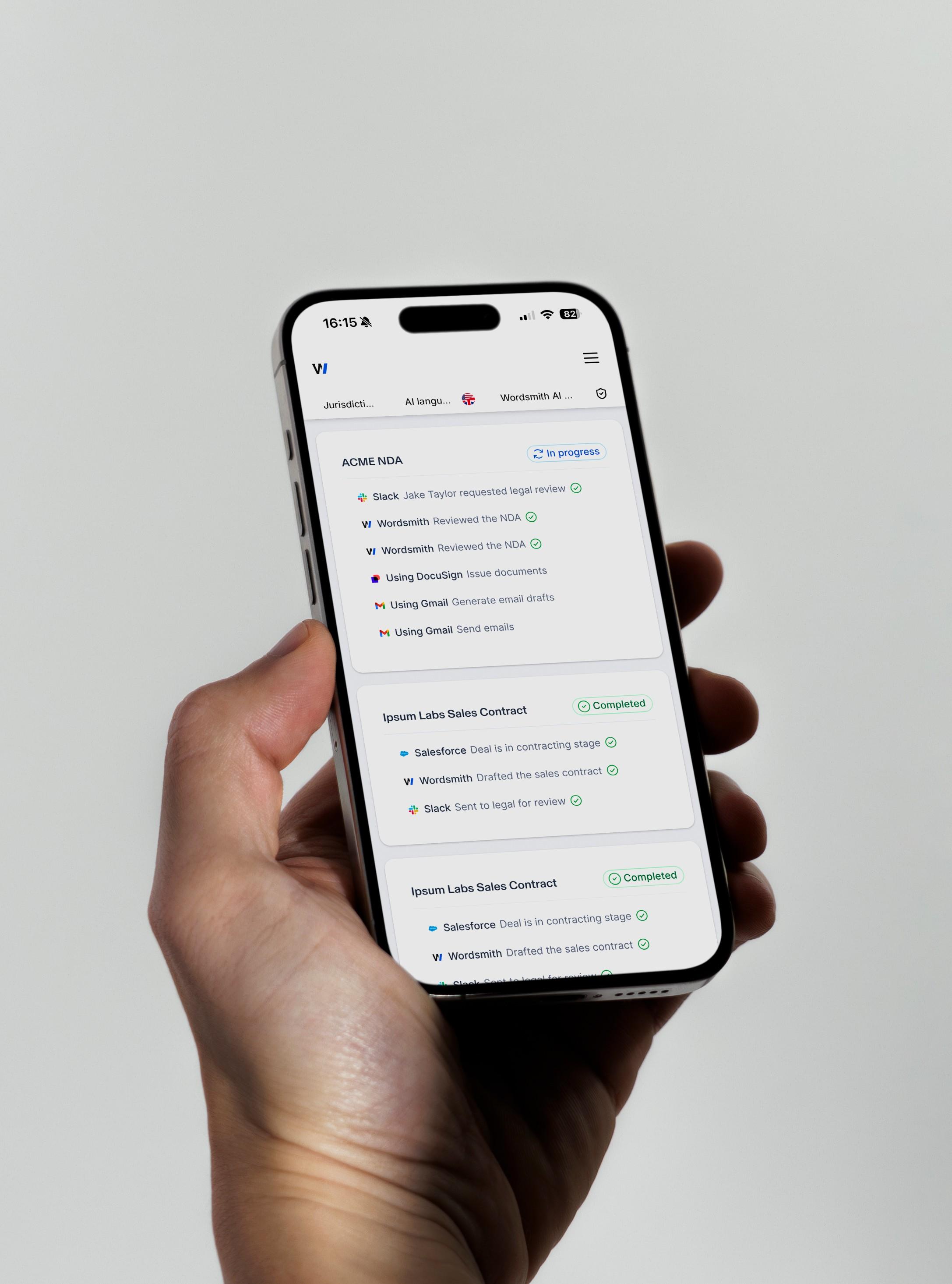
Chain drafting into a full end-to-end workflow. Receive the request, draft the document, route for approval, and send. No manual step required.
Library is now live in Wordsmith. It gives in-house legal teams one home for their documents: every repository, the files you’ve used recently, and the drafts and summaries from your chats. It opens beside your chat, so you can find a document mid-conversation, and expands to fill the window when you need more room.
Until now, finding a document meant knowing which repository held it, and finding a file from an earlier conversation meant scrolling back through old chats. Library puts all of it in one list, so your team spends less time looking for documents and more time working on them.
Library is the home for documents in Wordsmith. It replaces Repositories in the sidebar and brings together your repositories, your recent files and the files from your chats, with one search across all of them. There’s nothing to set up: your repositories, their contents and their settings carry over as they are, and everyone sees only what they could already open.
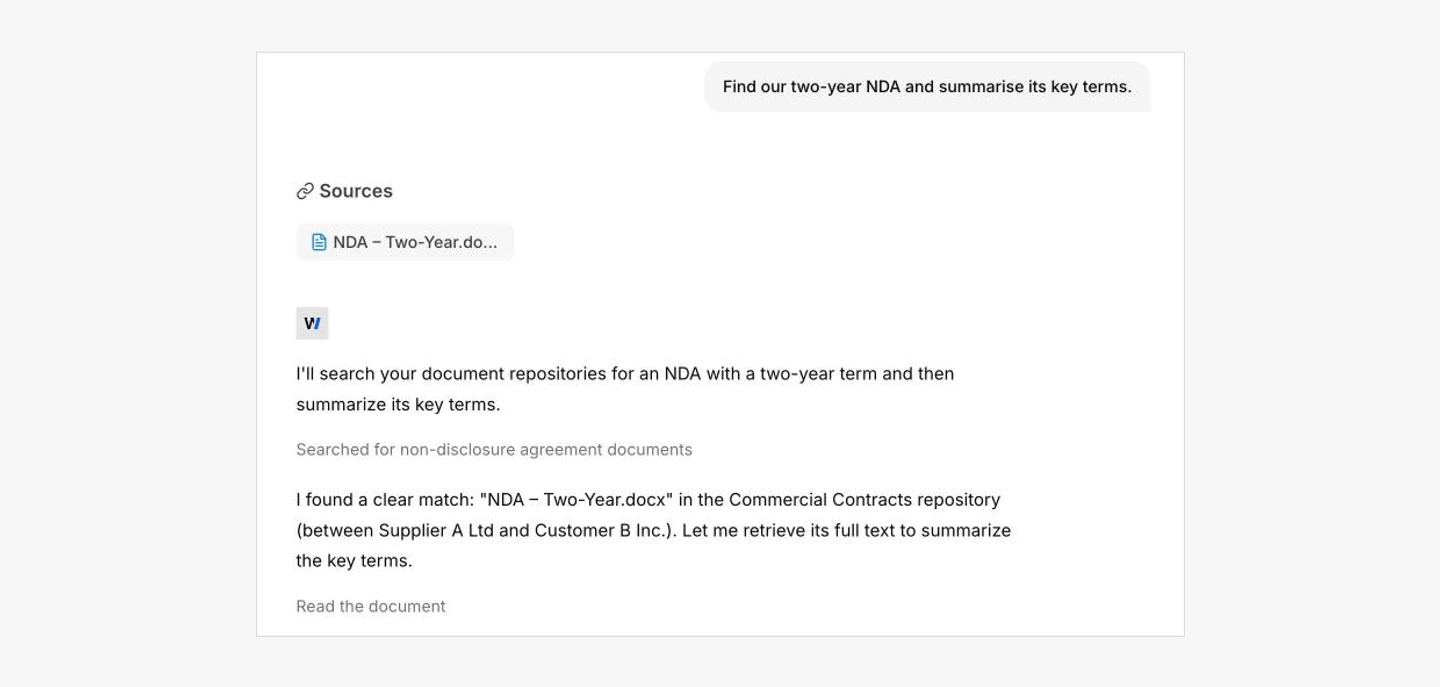
You no longer need to know where a document lives before you ask about it. Name the document in your question, for example “Find our two-year NDA and summarise its key terms”, and Wordsmith searches the names of everything in the repositories you can access, opens the best match and answers from it. Assistant sessions and agents use the same search whenever they need to find a document.
Tagging still works when you know where to look. Type / in a chat and pick a repository to focus Wordsmith on it. To search the text of documents across every repository, say so in your question, for example “Search all my repositories for change of control clauses”.
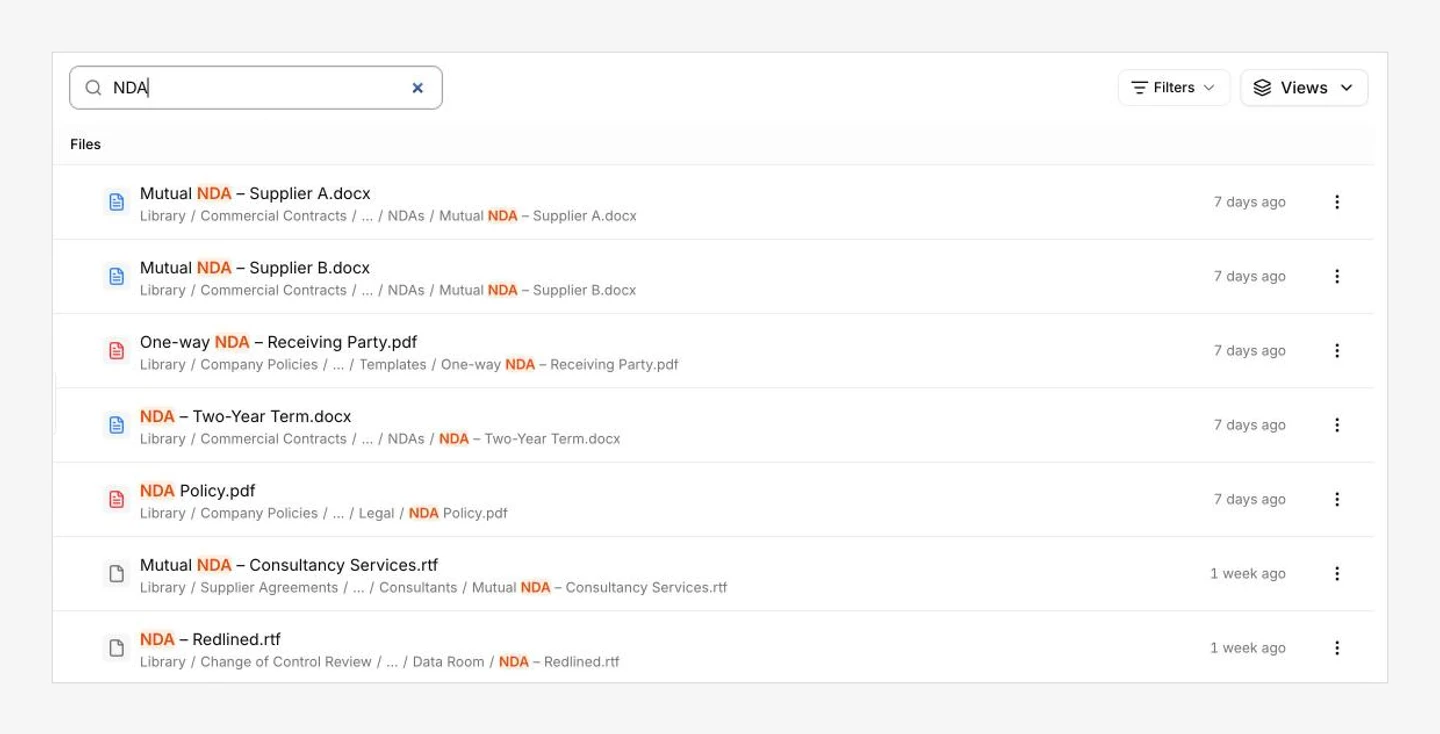
Type in Search Library to find repositories, folders and files by name, across every repository you can access. Each result shows the path to the item, so you can tell apart documents with similar names. Inside a repository, the same box searches just that repository.
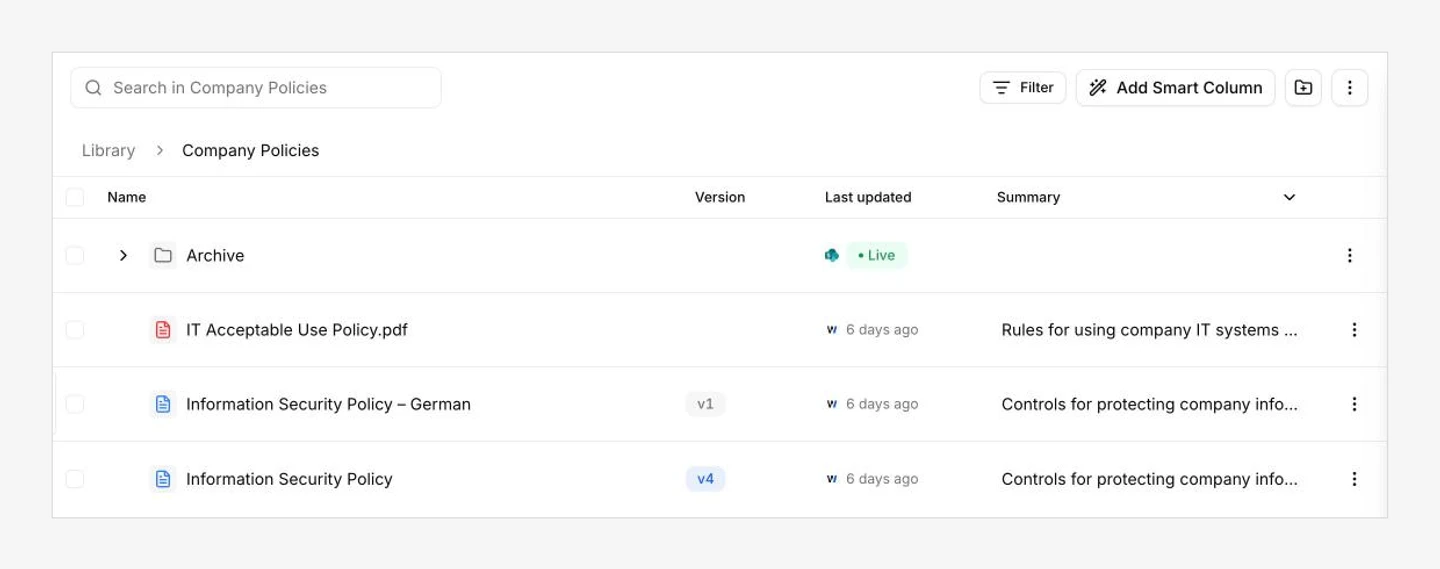
Create folders and subfolders inside any repository to group related documents. Library search finds folders by name too.
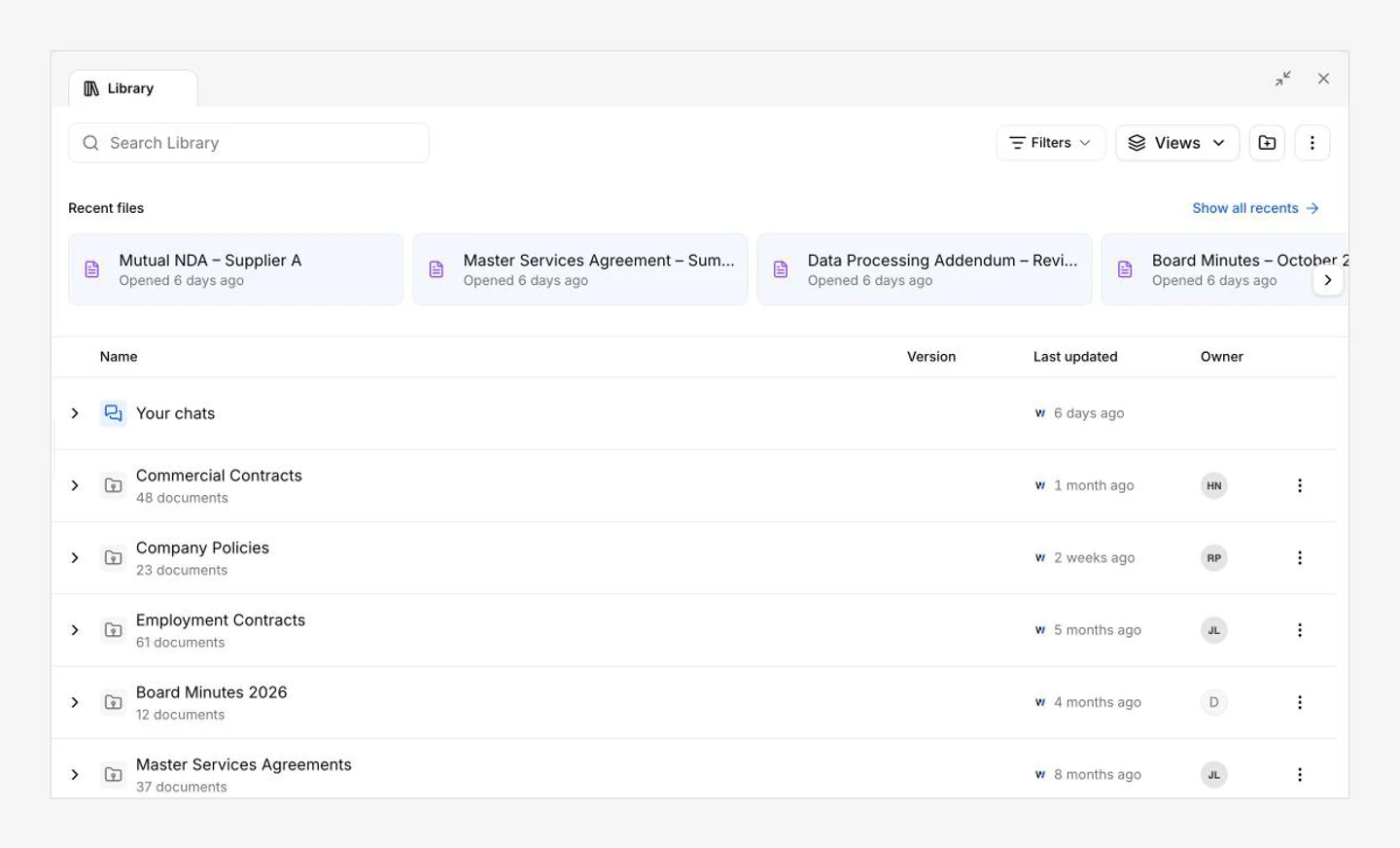
Recent files sits at the top of Library and shows the documents you’ve recently opened, uploaded or created in your chats, newest first. Select one to open it, or select Show all recents to see the full list.
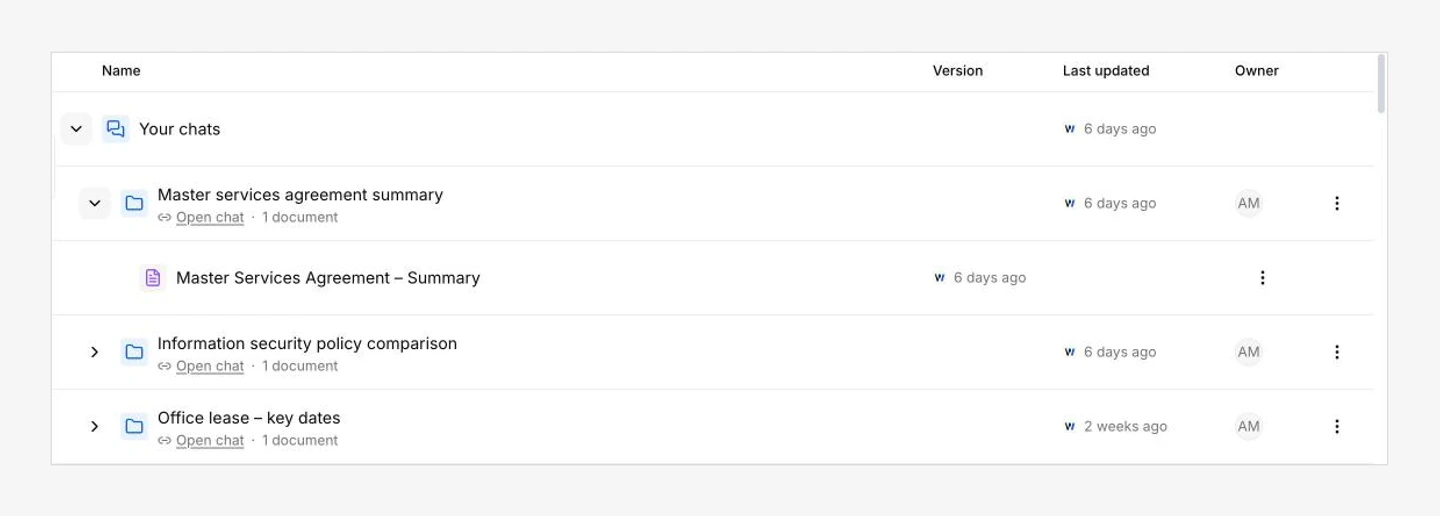
Your chats lists your recent conversations that contain documents. Expand one to see its files, including the drafts and summaries Wordsmith created. Open a file from there, or select Open chat to go back to the conversation it came from.
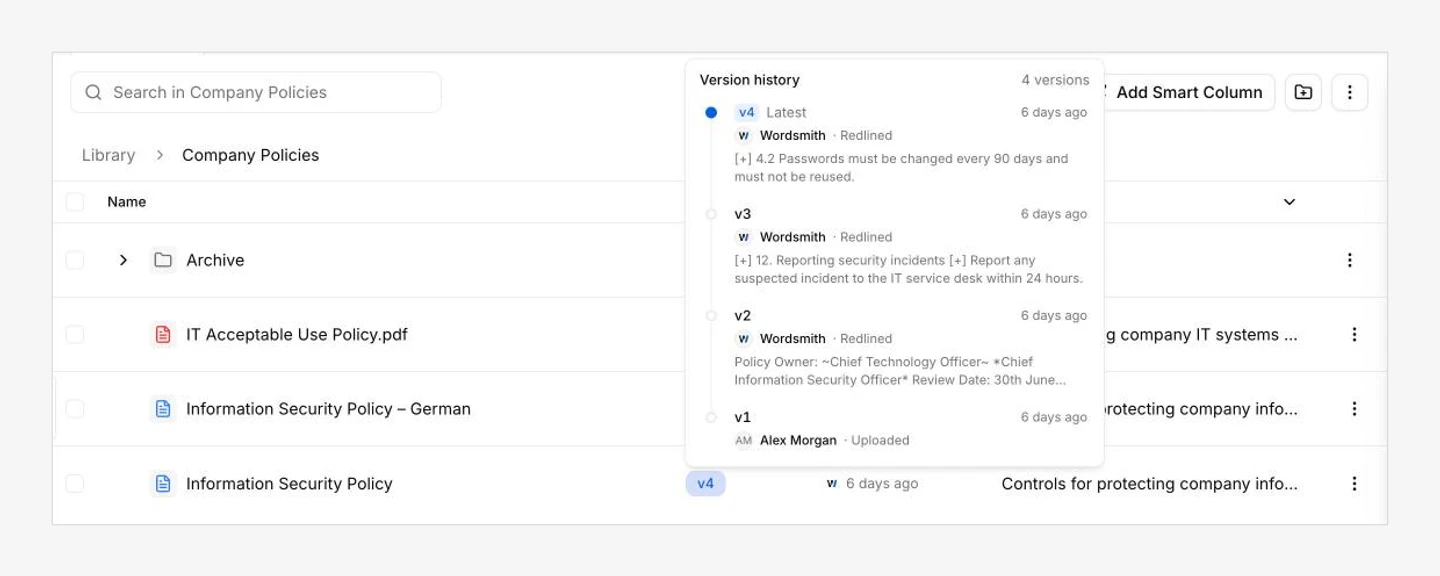
Library keeps a version history for every document, so no one has to work out which copy is current. When you edit a Library document in a chat, you can save your changes as a new version instead of a new file. Wordsmith can also save a review’s redline as the next version of the document it reviewed.
Library changes how you find documents. It doesn’t change how repositories work.
For a full walkthrough with screenshots, read the Library guide. For help setting it up for your team, speak to your account manager.
No. Every repository appears in Library as a top-level folder, with its contents, Smart Columns and settings unchanged.
No. Your repositories carry over as they are, and Library appears in the sidebar where Repositories used to be.
Library follows your existing permissions. People see only the repositories and files they could already open.
No. Earlier versions are read-only, so the history stays as it was. You can open and read any of them.