.
Article
How to Redline a Word Document: A Guide for In-House Legal Teams
Learn how to redline contracts in Word with step-by-step instructions, best practices, and AI-powered tools that help in-house legal teams work 50-90% faster.
The In-House Counsel’s Guide to Efficient Contract Redlining
For in-house legal teams, contract redlining is a daily reality. It’s the critical process of reviewing, editing, and negotiating agreements to protect your company’s interests. But in a world of increasing workloads and pressure to move faster, the traditional way of redlining in Microsoft Word can be slow, manual, and prone to errors.
This guide is designed for in-house legal professionals who want to master the art of redlining in Word and discover how modern AI tools can transform the process. We’ll cover everything from basic Track Changes to advanced techniques and best practices, helping you streamline your workflow and become a more efficient, strategic partner to the business.
Q&A Section
What is redlining a document?
Redlining is the process of marking up a document to show proposed changes. In the legal context, it’s how lawyers and business teams negotiate and revise contracts. The term comes from the traditional practice of using a red pen to strike through text and write in new suggestions.
How do you redline a Word document?
The most common way to redline a Word document is by using the Track Changes feature. You can find it in the Review tab. When you turn on Track Changes, any text you add will be underlined in red, and any text you delete will be struck through.
What is the shortcut for redlining in Word?
The keyboard shortcut to turn Track Changes on or off is Ctrl + Shift + E (for Windows) or Cmd + Shift + E (for Mac).
How do you accept redlines in Word?
In the Review tab, you can use the Accept and Reject buttons to go through each change one by one. You can also use the dropdown arrow next to these buttons to Accept All Changes or Reject All Changes at once.
How to Redline in Word: A Step-by-Step Tutorial
Mastering the redlining features in Microsoft Word is an essential skill for any in-house legal professional. Here’s a comprehensive guide to the most important features.
1. Turning on Track Changes
This is the foundation of all redlining in Word.
Open your document.
Go to the Review tab.
Click the Track Changes button. It will be highlighted to show that it is active.
Now, any changes you make will be tracked.
2. Understanding the Different Markup Views
Word gives you several ways to view the changes, which you can select from the dropdown menu next to Track Changes:
Simple Markup: Shows the final version with a red line in the margin to indicate where changes have been made. This is useful for a clean reading experience.
All Markup: Shows all changes inline, with deletions struck through and additions underlined. This is the classic “redline” view.
No Markup: Shows the document as if all changes have been accepted. This is helpful for seeing what the final version would look like.
Original: Shows the document before any changes were made.
3. Accepting and Rejecting Changes
Once you receive a redlined document, you need to review the changes.
In the Review tab, use the Previous and Next buttons to navigate through each change.
For each change, you can click Accept to incorporate it or Reject to discard it.
To save time, you can use the dropdown arrows to Accept All Changes or Reject All Changes.
4. Using the Compare Documents Feature
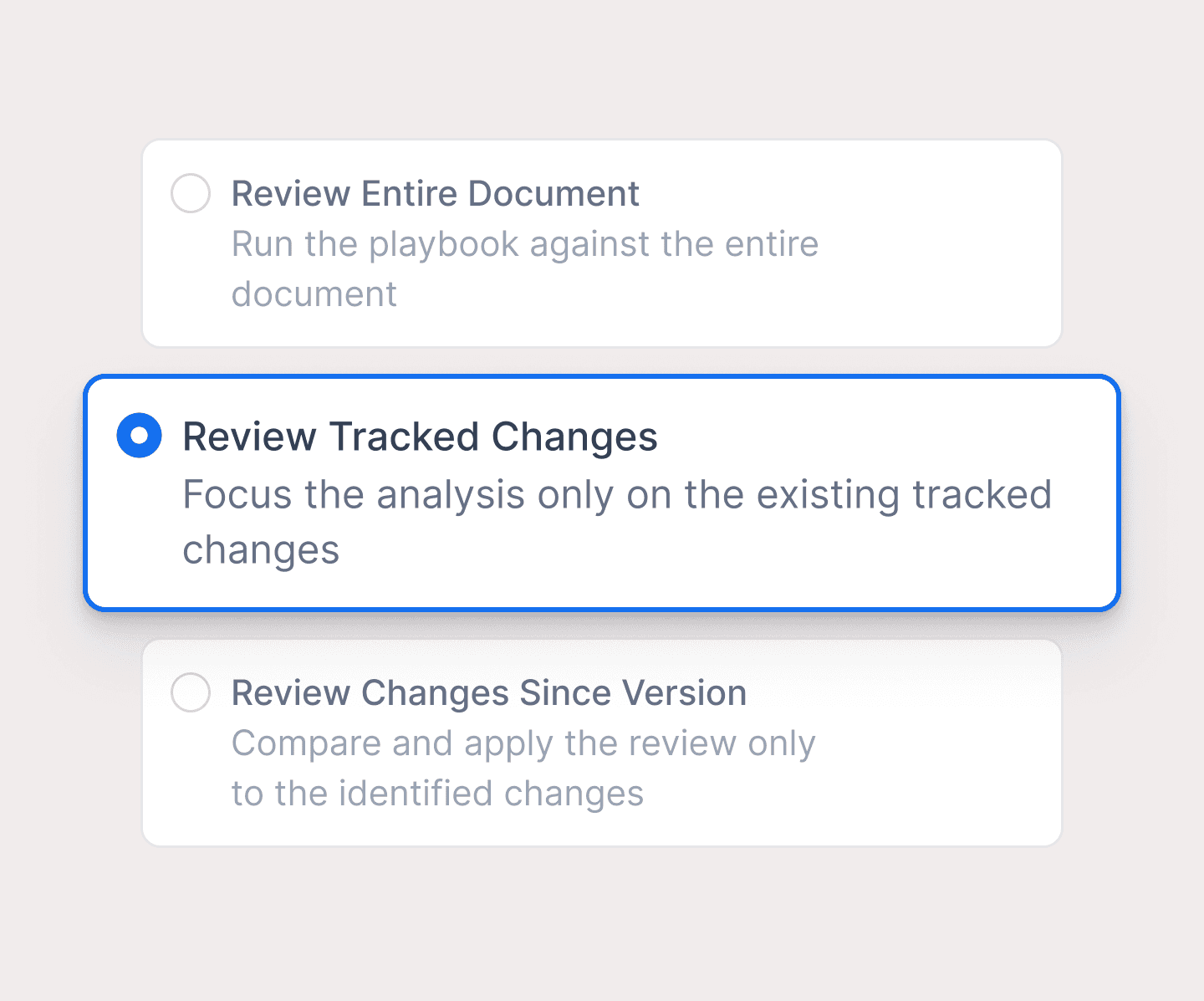
What if someone sends you a revised document without using Track Changes? This is where the Compare Documents feature is a lifesaver.
Go to the Review tab.
Click the Compare button and select Compare again.
In the dialog box, select your original document and the revised document.
Word will create a new document that shows all the differences between the two versions as tracked changes.
5. Advanced Tips for In-House Counsel
Customize Your Markup: In the Track Changes Options, you can change the colors and formatting for different reviewers to easily see who made which changes.
Use Comments Effectively: Instead of just making a change, add a comment to explain why you are making it. This builds trust and speeds up negotiations.
Lock Tracking: To ensure that no one can turn off Track Changes, you can use the Lock Tracking feature, which requires a password to disable it.
Best Practices for Contract Redlining: An In-House Perspective
Effective redlining is about more than just knowing how to use Word. It’s about communication, strategy, and efficiency.
Establish Clear Protocols: Before you start redlining, agree on the process with the other side. Who will be the “pen holder”? What is the expected turnaround time?
Be Clear and Concise: Don’t just make a change; explain your reasoning in a comment. A simple “Changed to clarify X” can save days of back-and-forth.
Prioritize Your Changes: Focus on the most important issues first. Don’t get bogged down in minor grammatical fixes on the first pass.
Maintain Version Control: Use a clear and consistent naming convention for your documents (e.g., “MSA_v2_Wordsmith_Edits”). This prevents confusion and ensures everyone is working on the latest version.
The Future of Redlining: AI-Powered Contract Review
While Word is a powerful tool, it was not designed for the complexities of contract negotiation. This is where AI contract review software like Wordsmith.ai comes in. Instead of replacing Word, modern AI tools work alongside it to automate the most time-consuming parts of the redlining process.
How AI Transforms Redlining:
Automated Playbook Compliance: AI can automatically scan an incoming contract and redline any clauses that don’t comply with your company’s pre-approved legal playbook.
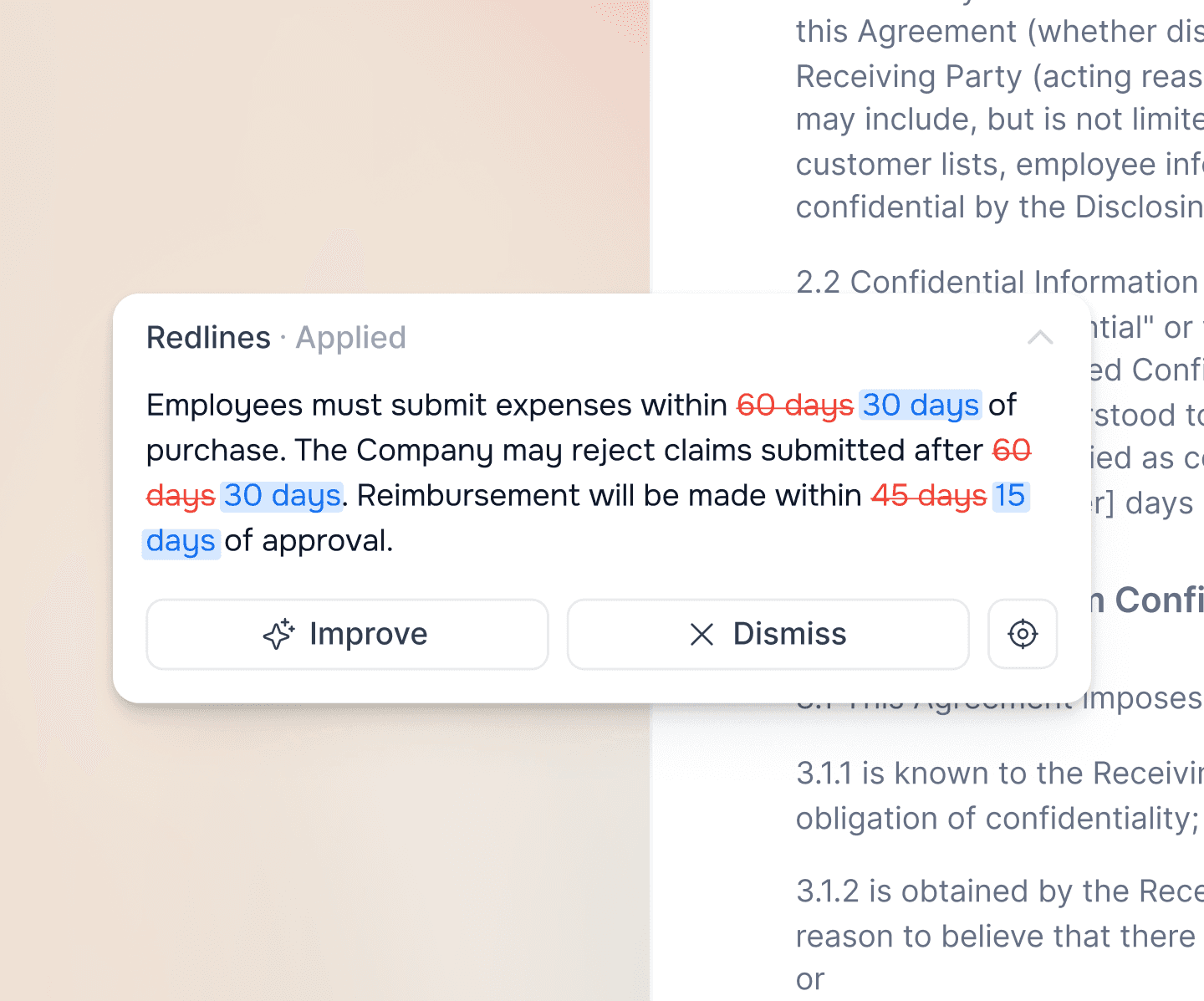
Instant Redline Suggestions: Instead of manually typing out changes, AI can suggest pre-approved fallback positions and generate redlines in seconds.
Contextual Reasoning: Modern AI tools can explain why a change is being recommended, providing context and helping to speed up negotiations.
By automating the first-pass review, AI empowers in-house legal teams to focus on high-value strategic issues instead of getting bogged down in routine redlining. It’s not about replacing lawyers; it’s about giving them superpowers.
Wordsmith.ai: AI-Powered Redlining in Your Word Document
Wordsmith.ai’s Review product and Word add-in bring the power of AI directly into your existing workflow, so you never have to leave your document.
The Wordsmith.ai Word Add-in
Our Word add-in allows you to:
Run Playbooks Directly in Word: Analyze a contract against your company’s standards with a single click.
Accept, Reject, and Improve Redlines: Review AI-generated suggestions and make the final call.
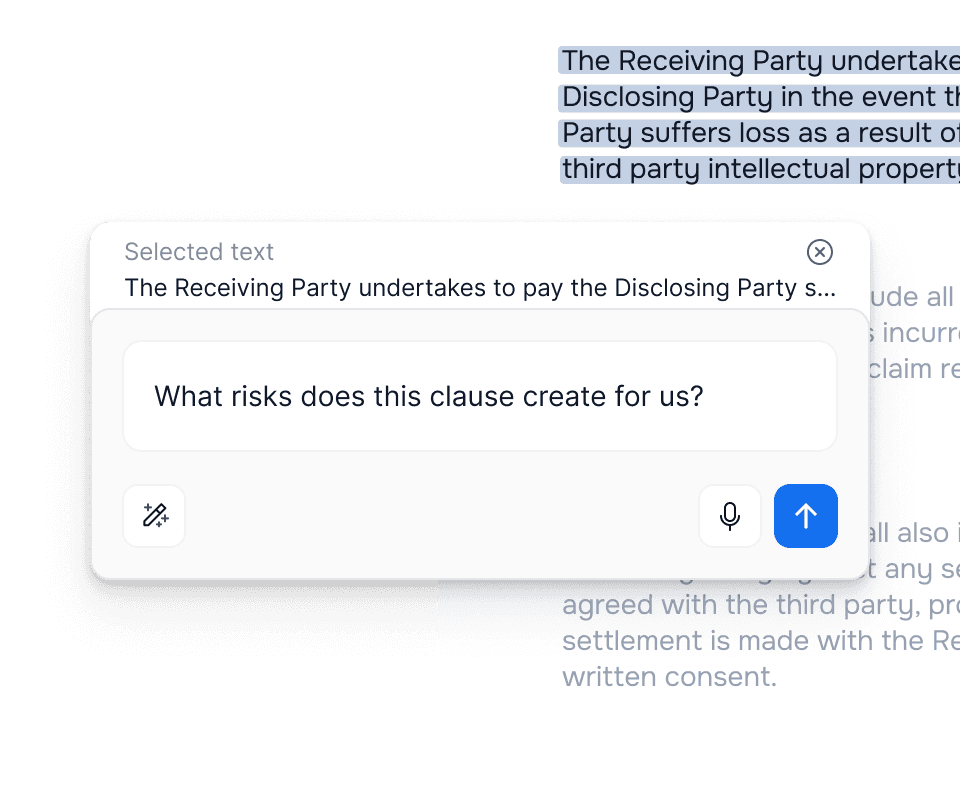
Ask AI Questions: Highlight a clause and ask Wordsmith to explain it in simple terms or suggest an alternative.
Generate Redlines with Tracked Changes: All AI-suggested changes are automatically created as tracked changes, so you maintain full control.
Access Enhanced Composer Features: Attach files, select writing styles (formal, concise), choose jurisdictions, and even enable deep research for more accurate results.
By integrating directly into Word, Wordsmith.ai eliminates context switching and allows you to redline contracts 50-90% faster.
Conclusion: From Manual Redlining to Strategic Review
Mastering the art of redlining in Word is a crucial skill for any in-house legal professional. By following the best practices and using the advanced features we’ve discussed, you can make your review process more efficient and effective.
But to truly transform your workflow, it’s time to embrace the power of AI. By automating the manual, repetitive parts of redlining with tools like Wordsmith.ai, you can free up your time to focus on what matters most: providing strategic advice and helping your business move faster.
Frequently Asked Questions (FAQ)
What is the best way to redline a contract?
The best way is to use the Track Changes feature in Microsoft Word, combined with clear comments to explain your reasoning. For even greater efficiency, consider using an AI-powered contract review tool like Wordsmith.ai that integrates directly into Word.
How do I redline a PDF?
You can redline a PDF using Adobe Acrobat’s commenting tools. However, for collaborative editing, it’s generally better to work in a Word document where you can use AI-powered add-ins.
What is the difference between redlining and blacklining?
Redlining shows the proposed changes in a document. Blacklining is the process of comparing two versions of a document to create a redline. The Compare Documents feature in Word is a blacklining tool.
How can I automate contract redlining?
You can automate contract redlining by using AI-powered software like Wordsmith.ai. These tools can automatically scan contracts, identify non-compliant clauses, and suggest pre-approved redlines based on your company’s legal playbook, all within your Word document.
Is it better to redline in Word or Google Docs?
Both have similar features, but Microsoft Word is still the standard for most legal teams and allows for powerful AI add-ins like Wordsmith.ai. However, Google Docs is becoming more popular for its real-time collaboration features.